
In the previous article,
we learned what
MongoDB
is, how to run the Mongo daemon on the local machine, and how to open the Mongo shell. So, we
will cover the following topics in this tutorial:
We will use commands to create new databases, collections, and documents in
MongoDB. We will also learn how to query documents to fetch or search stored
data.
So let's start. 💪
1. Create a Database and Collection
Before we create any database let’s know the command to list all the
database names. To see the list of all the databases currently in the MongoDB
server, we should use the following command:
show dbs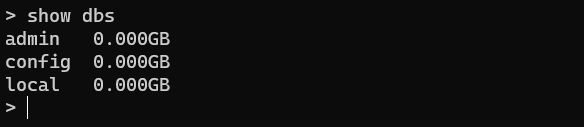
To create or switch databases:
use acme
This command actually creates a new database named ‘acme’ and we are now
inside the ‘acme’ database. Now we run the command ‘show dbs’ and let's see
what will happen:
show dbs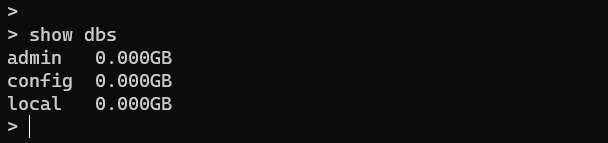
As you can see ‘acme’ database name is not showing in the list, because
the database has no collection (like no table).
We now create a collection in the ‘acme’ database. To create a new
collection:
db.createCollection('products')
It is like creating a table in a relational database. The only difference is
that in relational database systems, we have to specify the columns with
a specific data type along with the table name, but in MongoDB, we are
just specifying the collection (table) name.
Now if we run ‘show dbs’, database ‘acme’ will come in the list:
show dbs
To list all the collections:
show collections
2. Create a document
Now we can insert a document in the collection. It is like inserting
a row in a table in a relational database system. To insert a
document:
db.product.insert({
   code: 'AJW879',
   prod_name: 'Leather Jacket',
   sex: 'Men',
   color: 'Brown',
   category: ['jacket','men','top wear'],
   price: '$15',
   size: 'M',
   quantity: 29
})
To list all the documents that we have inserted in the ‘product’
collection:
db.product.find()
As you can see, the document is shown in an unformatted way. To get the document formatted:
db.product.find().pretty()
📌 One thing we have to notice here - is the “_id” field in the
document. This is like a primary key that is inserted at the time
of the creation of a document by MongoDB and its value is unique. Its
unique value is maintained by
ObjectId(). Every document must have a “_id” field. It is also unique to the
collection in which all documents are grouped. We can also mention
the “_id” field value at the time of document creation time, like this:
db.product.insert({
    _id: 1001,
    code: 'AJW820',
    prod_name: 'Denim Jacket',
    sex: 'Men',
    color: 'Blue',
    category: ['jacket','men','top wear','denim'],
    price: '$12',
    size: 'M',
    quantity: 25
})
Let's see the result:
db.product.find().pretty()
You can see the value of the “_id” field that we had passed at the
time of document creation.
📌 Now let’s examine
what will happen if we insert a document with an existing “_id”
value. We will try to insert a document with “_id” value 1001:
>db.product.insert({
  _id: 1001,
  code: 'AJW820',
  prod_name: 'Denim Jacket',
  sex: 'Men',
  color: 'Blue',
  category: ['jacket','men','top wear','denim'],
  price: '$12',
  size: 'M',
          quantity: 25
        })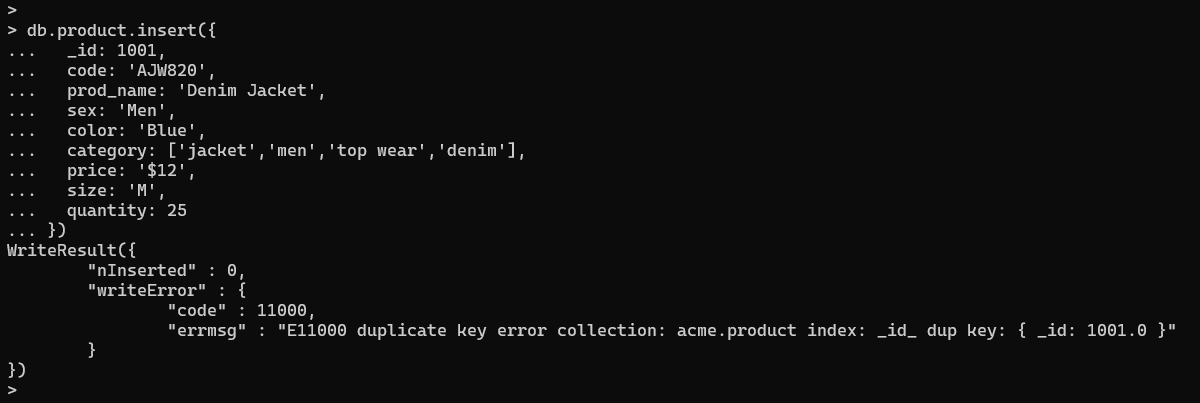
The response from the database is that the number of documents
inserted is 0 after the execution of the command and there is a
“writeError” which means saving this document in the database is not
successful. The “errmsg” says there is a duplicate key error, this
means we can not save documents with the same “_id” value in a
particular collection.
We can also insert multiple documents at a time. To do so:
db.product.insertMany([
  {
    _id: 1002,
    code: 'A820',
    prod_name: 'Jeans',
    sex: 'Men',
    color: 'Blue',
    category: ['jeans','men','bottom wear'],
    price: '$13',
    size: 'M',
    quantity: 40
  },
  {
    code: 'A020',
    prod_name: 'Track pants',
    sex: 'Men',
    color: 'Black',
    category: ['pants','men','bottom wear'],
    price: '$10',
    size: 'M',
    quantity: 30
  }
])
Here you might notice one thing - in the first product details I
have set value in the “_id” field and in the second product details
I have not mentioned the “_id” field - here the value of “_id” will
be filled by MongoDB.
Now it's time to see all the documents in the “product” collection:
db.product.find()
3. Query the document
Now we will learn how to fetch data from the collection by
applying some conditions.
In the previous section, we used db.product.find() to
fetch all the data from a collection. We can pass arguments in
find() as conditions. We want to query the collection on
the basis of “code”. We want to find a product with a particular
“code” from the “product” collection. So the command is like this:
db.product.find({ code: 'AJW820' }).pretty()
To get the first document from the “product” collection:
db.product.findOne()
Now suppose we want to find out all the products in the category ‘bottom
wear’:
db.product.find({ category: 'bottom wear' }).pretty()
We want to fetch the products whose price are greater than $12:
db.product.find({ price: {$gt: '$12'} }).pretty()
Now we want to fetch products whose price are greater than equals to
$12:
db.product.find({ price: {$gte: '$12'} }).pretty()
The command for finding products whose price is less than $13:
db.product.find({ price: {$lt: '$13'} }).pretty()The command for finding products whose price is less than equals to
$13:
db.product.find({ price: {$lte: '$13'} }).pretty()The command for finding products whose price is not equal to $13:
db.product.find({ price: {$ne: '$13'} }).pretty()To count the number of documents in a collection:
db.product.find().count()
To count all the products of the category ‘bottom wear’:
db.product.find({ category: 'bottom wear' }).count()
Now we want to fetch a specific number of documents from the
collection. To do this:
db.product.find().limit(2).pretty()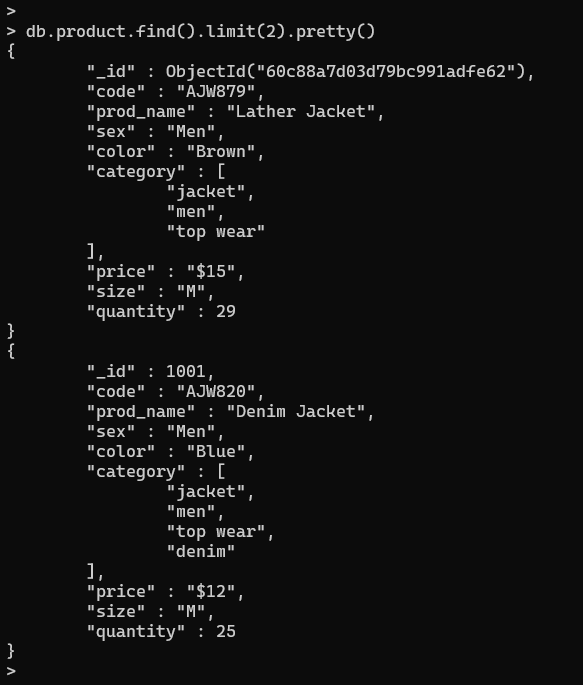
To sort the documents in ascending order by product name:
db.product.find().sort({ prod_name: 1 })
To sort the documents in descending order by product name:
db.product.find().sort({ prod_name: -1 })
Now we want to update the price and color of a product whose code is
A020. To do this:
db.product.update({ code: 'A020' },
  {
   $set: {
     color: 'Olive Green',
     price: '$11'
   }
  })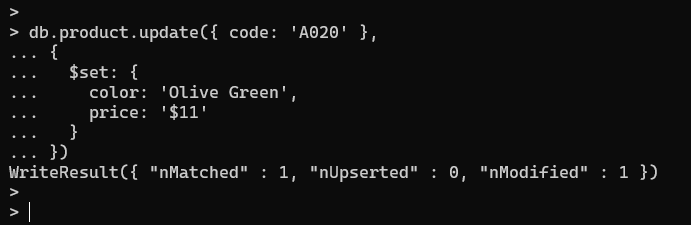
In the command, you can see in the first curly braces we have
passed the condition ({ code: 'A020' }) and in the second curly
braces, we have passed the new value ({ $set: { color: 'Olive
Green', price: '$11' }}).
We want to remove a document whose code is A020. To do this:
db.product.remove({ code: 'A020' })
To drop a collection:
db.dropDatabase()
So, we have completed the basic tutorial of MongoDB with some
frequently used commands.
MongoDB tutorial for beginners


